DualList
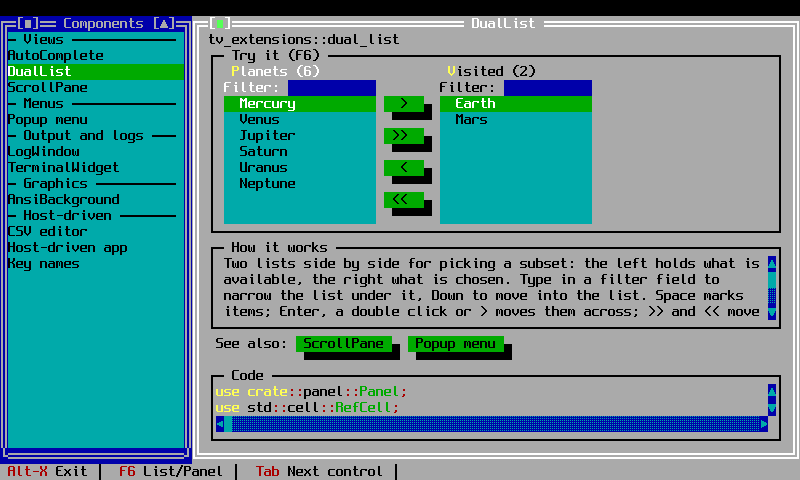
DualList picks a subset of items by moving them between two lists, like
Django admin's filter_horizontal widget. The left list holds the
available items and the right list the chosen ones. Each list has a filter
field above it, labelled "Filter:", and four buttons between the lists move items across. It
is always available, with no feature flag.
 Toppings (22)                     On the pizza (2)
 Filter: [ch      ]                Filter: [        ]
   Anchovies              [ > ]      Basil
 √ Artichoke              [>> ]      Mozzarella
   Bacon                  [ < ]
 √ Black olives           [<< ]
The view is built from core controls (two InputLines, two multi-select
ListBoxes and four Buttons) in a group of its own, so it looks like the
rest of the dialog and takes its colours from it.
Items and the result
Each item is a key and a label. The lists show the labels; the keys are
what the caller gets back, so they can be database ids, enum values or
anything Clone + PartialEq.
The chosen keys are shared through an Rc<RefCell<Vec<K>>>, the way core's
InputLine shares its text. Fill it before the dialog runs to preselect
items, and read it after the dialog closes. It is kept up to date on every
move, so an on_change handler can read it too.
use std::{cell::RefCell, rc::Rc};
use turbo_vision::core::geometry::Rect;
use tv_extensions::DualListBuilder;

// Mozzarella (115) and Basil (104) are on the pizza already
let chosen = Rc::new(RefCell::new(vec![115, 104]));
let toppings = DualListBuilder::new()
    .bounds(Rect::new(2, 1, 62, 16))
    .items([(101, "Anchovies"), (104, "Basil"), (115, "Mozzarella")])
    .data(chosen.clone())
    .titles("Toppings", "On the pizza")
    .build();
// After the dialog closes, `chosen` holds the chosen ids.
Keys in data that belong to no item are dropped. set_items replaces the
items and keeps the chosen keys that still exist; set_chosen and
chosen_keys set and read the selection directly.
Keys and mouse
| Input | Action |
|---|---|
| Typing in a filter field | Show only the items whose label contains the text, ignoring case |
| Down in a filter field | Move to the list under it |
| Alt+letter marked in a title | Move to that list's filter field |
| Click on a filter label | Move to its filter field |
| Space in a list | Mark or unmark the focused item |
| Shift+click in a list | Mark the run from the last clicked item |
| Enter or double-click in a list | Move the marked items to the other list, or the focused one if none is marked |
> / < |
Move the marked (or focused) items right / left |
>> / << |
Move every item the filter shows right / left |
| Tab / Shift+Tab | Step through the parts, then on to the dialog's next control |
Moving all respects the filter, as in Django: with "an" typed above the left
list, >> chooses only the items containing "an". The header over each list
counts what it shows ("Toppings (5 of 22)" while filtered) and lights up
while the focus is in that list or its filter.
Tab visits the left filter, the left list, the four buttons, the right
filter and the right list, then leaves for the dialog's next control. When
the focus comes back, it lands on the part that had it last, as in a
Borland TGroup.
Filter labels and hotkeys
Each filter field has a label in front of it, "Filter:" by default, lit
while its field has the focus. Change it with filter_label("Search:"), or
pass an empty text to give the fields the whole width.
Mark a letter of a title with tildes, as in Turbo Vision labels, and Alt+that letter moves to the list's filter field:
use turbo_vision::core::geometry::Rect;
use tv_extensions::DualListBuilder;

let toppings = DualListBuilder::new()
    .bounds(Rect::new(2, 1, 62, 16))
    .items([(1, "Basil"), (2, "Ham"), (3, "Tuna")])
    .titles("~T~oppings", "On the ~p~izza") // Alt+T, Alt+P
    .filter_label("Search:")
    .build();
The hotkeys work while the focus is anywhere in the view. They cannot pull
the focus in from another control of the dialog, because a view does not
know the id its dialog gave it. To reach the view with a hotkey from
anywhere, add an ordinary Label to the dialog, linked to the id
dialog.add returned for the view. The first time in, the focus lands on
the left filter; after that, on the part it was last on.
Order
The available list always keeps the items' own order. By default the chosen
list does too, so the keys come back in item order. With
keep_chosen_order(true), the chosen list keeps the order the items were
chosen in, and so does data: useful when the order means something, such
as picking the columns of a report.
Validation
min_chosen(n) and max_chosen(n) bound how many items can be chosen;
required(true) is min_chosen(1). Both are off by default. They follow
Borland's validators: input that can never be valid is refused as it is
entered, completeness is checked when the dialog closes. So a move that
would choose more than the maximum does not happen, while fewer than the
minimum makes valid() refuse OK (and the close button of a modeless
window). Either way the header of the chosen list turns into an error line,
in Borland's error colours, until the next move. Cancel always closes.
The default messages are "Choose at least N items" and "Choose at most N
items" ("one item" for 1). Replace them with min_message and
max_message.
use turbo_vision::core::geometry::Rect;
use tv_extensions::DualListBuilder;

let toppings = DualListBuilder::new()
    .bounds(Rect::new(2, 1, 62, 16))
    .items([(1, "Basil"), (2, "Ham"), (3, "Tuna")])
    .min_chosen(1)
    .max_chosen(5)
    .min_message("Choose a topping")
    .max_message("Five toppings at most")
    .build();
Layout
Give the view at least 10 rows, so the four buttons fit beside the lists: row 0 holds the headers, row 1 the filters, and the lists fill the rest. The two lists split the width evenly around an 8-column button strip.
Examples
cargo run --example dual_list --features native edits a pizza's toppings:
24 toppings with numeric ids, two preselected, between one and five
allowed. The chosen ids are printed when the dialog closes.
cargo run --example dual_list_form --features native puts the picker in a
larger form, like Django admin's "Change user" page: username, full name
and email fields, a role, status flags and the user's permissions. It loads
a User record into the form and reads every field back after OK. A dialog
Label linked to the DualList gives it a hotkey from anywhere in the
form (Alt+P), the titles' hotkeys jump to its filters, and Tab walks the
whole form through the picker's parts. Permission keys are strings such as
blog.add_post.