Examples
The repository ships 48 runnable examples under examples/. They are not decoration: building them
all is how the crate checks that its public API still works from outside, so any change that breaks
a downstream program breaks the example build first.
Quit with Alt+X
These are full-screen terminal applications. Leave through the application, not by closing the terminal window, or you will be left in raw mode.
Start here
| Example | Lines | What it shows |
|---|---|---|
quick_start_00 .. quick_start_05 |
10-130 | The application shell, assembled one piece at a time. Walked through in the quick start tutorial. |
minimal_app |
80 | A status line and a window, no menu bar. The equivalent of deriving from TProgram instead of TApplication. |
dialogs |
64 | The three standard library dialogs. |
showcase |
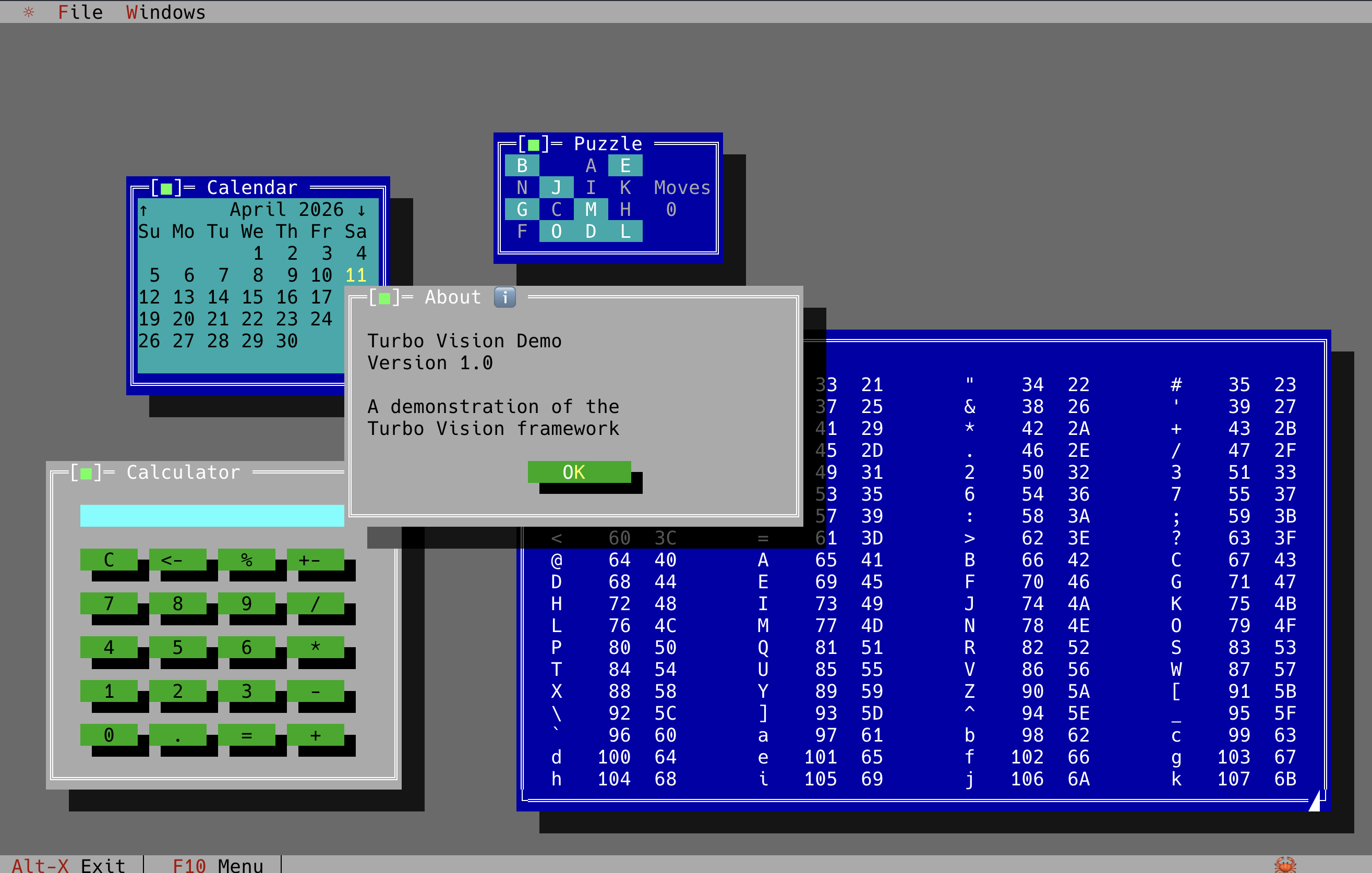
1785 | The broad demo: calculator, calendar, ASCII table and puzzle windows, overlapping with shadows and z-order. |
By subject
Application shell
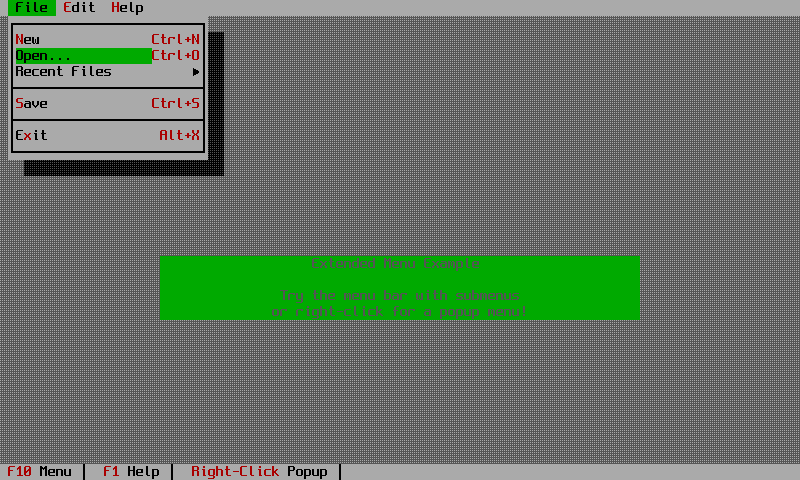
menu_status— a menu bar with submenus, a right-click context menu, and a status line with hot spots and hints.command_set— buttons that enable and disable themselves as application state changes, driven by the global command set.function_keys— F1 through F10, and what actually arrives from the terminal.desktop_logo— a custom desktop background, ported from Borland'sdesklogoexample.dynamic_title— changing a window title while the application runs.
Windows and layout
window_resize— dragging, resizing and the growth modes that decide how children follow.test_window_overlap— modal against non-modal, and what a modal window blocks.broadcast— a standalone group distributing a broadcast to its children.wrong_owner— a deliberate mistake: a button that reports the wrong owner type and picks up the wrong palette. Useful when your colours look off.
Controls
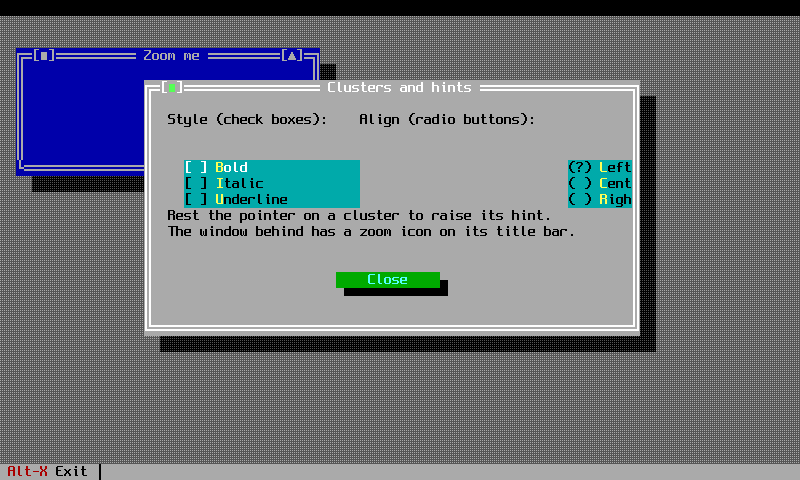
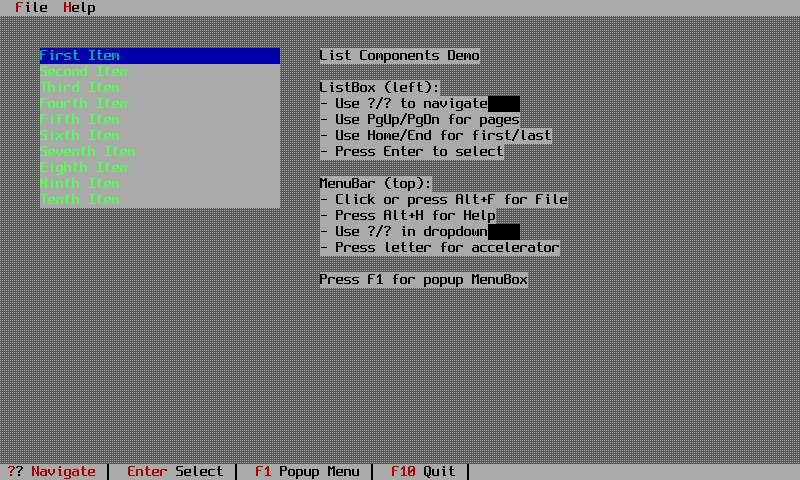
new_controls— the widgets added beyond the Borland set, on two tabbed pages.cluster_tooltip— multi-item check box and radio clusters, tooltips, and the frame zoom triangle.list_components— the list viewer family end to end.sorted_listbox— a sorted list with binary search and type-ahead.tree_view— a hierarchical outline view.progress_bar— determinate and marquee bars, animated as overlay widgets.label_link— labels that focus the input field they are linked to.validator— every validator type in one dialog: filter, range and picture.
Files and the editor
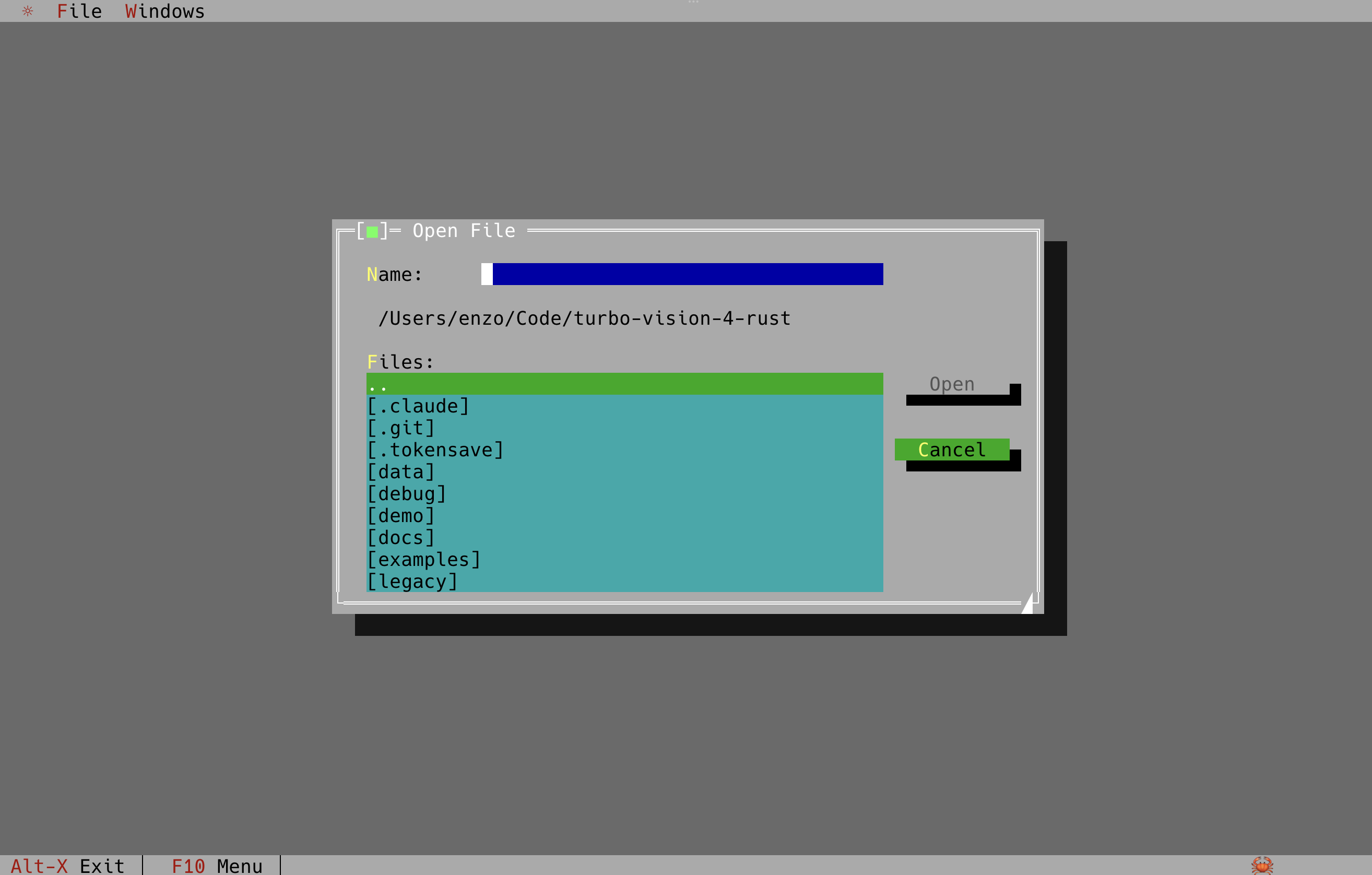
file_dialog— the open and save dialogs.file_browser— a directory tree beside a file list.
 -
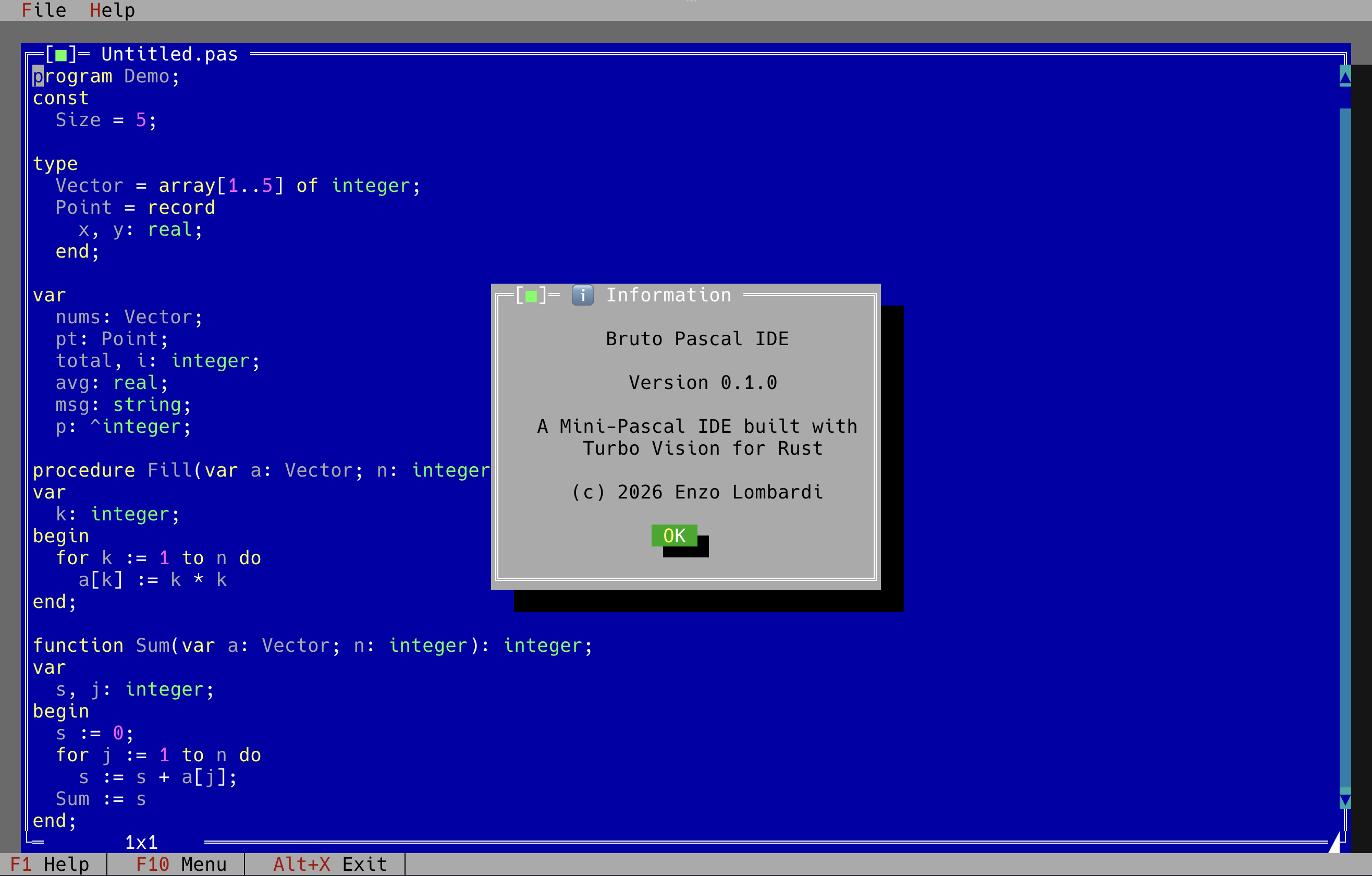
- pascal_ide — the editor from the Bruto-Pascal project, with a breakpoint gutter and Pascal syntax highlighting. The most complex example in the tree.
Colour and text
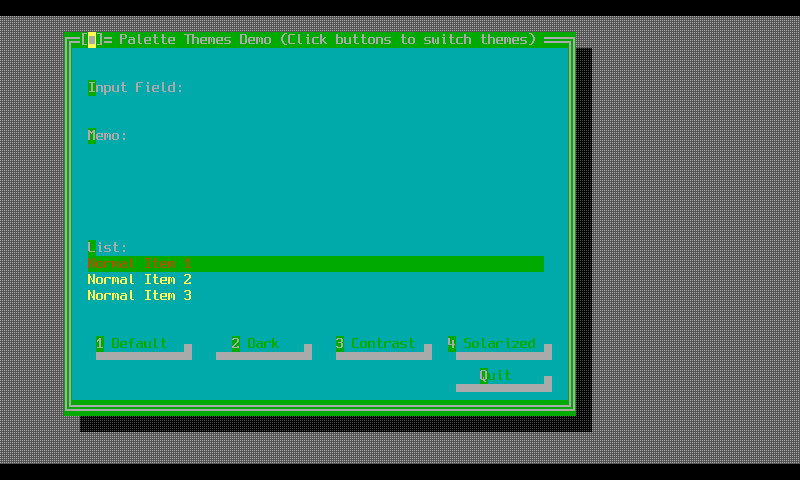
palette_themes— replacing the application palette at runtime.text_styling— a table of every text style the terminal layer can emit.kitty_image,kitty_background,kitty_biorhythm— real images in the terminal through the Kitty graphics protocol.
Terminal and plumbing
terminal_widget— a scrolling output viewer fed by a simulated build log, matching Borland'sterminal.cc.log_window—tracingoutput routed into a scrollable window.suspend_resume— handing the terminal back to the shell and taking it again.screenshot— the built-in screen capture shortcuts.beep— audio feedback.ssh_server— serving the application over SSH. Requires--features ssh.test_events,test_mouse— diagnostic tools that print every event, for when a key or a click is not arriving.
Whole applications
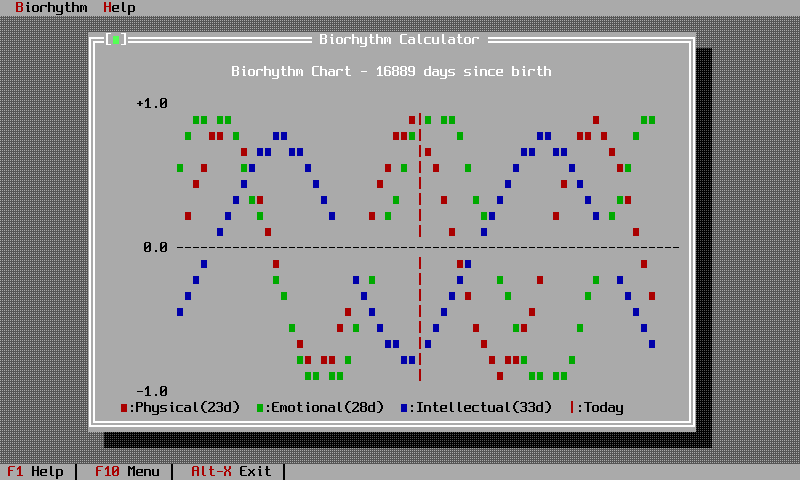
biorhythm— the calculator built in the tutorial: a validated date form and a custom chart view.ui_features— beeps, dynamic titles and message boxes together.
Reading an example
Four of them are picked apart in the walkthroughs.