Getting started
Install
Add the crate to your project:
Or in Cargo.toml:
Two optional features exist. ssh builds the SSH backend so an application can be served over a
network connection. test-util exposes the mock terminal so your own tests can draw views and read
cells back.
The smallest application
use turbo_vision::prelude::*;

fn main() -> turbo_vision::core::error::Result<()> {
    let mut app = Application::new()?;
    app.run();
    Ok(())
}
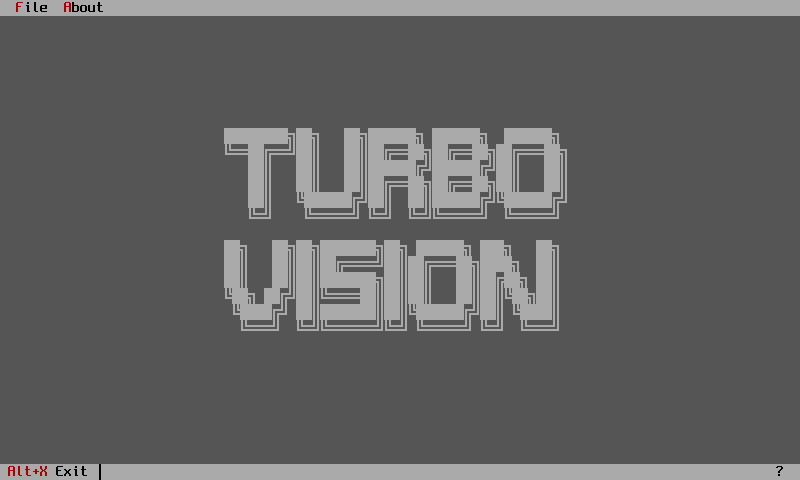
That gives you the blue desktop and nothing else. Application::new claims the terminal, puts it
in raw mode and installs the desktop; run is the event loop. Press Alt+X to leave.
Adding a status line
The status line is a view you build and hand to the application. Each item pairs a display string, a key chord and a command. The tildes mark the highlighted letter, exactly as in Borland's resource strings.
use turbo_vision::core::status_data::StatusItemBuilder;
use turbo_vision::prelude::*;
use turbo_vision::views::status_line::StatusLine;

fn setup_status_line(app: &Application) -> StatusLine {
    let (w, h) = app.terminal.size();
    StatusLine::new(
        Rect::new(0, h as i16 - 1, w as i16, h as i16),
        vec![
            StatusItemBuilder::new()
                .text("~Alt-X~ Exit")
                .key("Alt+X")
                .command(CM_QUIT)
                .build(),
        ],
    )
}
An unrecognised chord panics the first time the application runs, so a typo surfaces immediately rather than becoming a dead key.
Adding a menu bar
use turbo_vision::core::menu_data::{Menu, MenuItem, MenuItemBuilder};
use turbo_vision::views::menu_bar::{MenuBar, SubMenu};

fn setup_menu_bar(app: &Application) -> MenuBar {
    let file_items = vec![
        MenuItemBuilder::new().text("~O~pen...").command(CM_OPEN).key("Ctrl+O").build(),
        MenuItem::separator(),
        MenuItemBuilder::new().text("E~x~it").command(CM_QUIT).key("Alt+X").build(),
    ];

    let (w, _) = app.terminal.size();
    let mut menu_bar = MenuBar::new(Rect::new(0, 0, w as i16, 1));
    menu_bar.add_submenu(SubMenu::new("~F~ile", Menu::from_items(file_items)));
    menu_bar
}
Register both with app.set_status_line(..) and app.set_menu_bar(..) before calling run.
Handling your own commands
Application commands start at CM_USER, which is 200. Implement AppHandler and pass it to
run_with rather than writing your own loop.
use turbo_vision::app::application::AppHandler;

const CM_ABOUT: CommandId = CM_USER;

struct MyApp;

impl AppHandler for MyApp {
    fn handle_command(
        &mut self,
        app: &mut Application,
        command: CommandId,
        _event: &Event,
    ) -> bool {
        match command {
            CM_ABOUT => {
                message_box_ok(app, "A Turbo Vision application.");
                true
            }
            _ => false,
        }
    }
}
Returning true marks the command consumed. Start the program with app.run_with(&mut MyApp).
Running the bundled examples
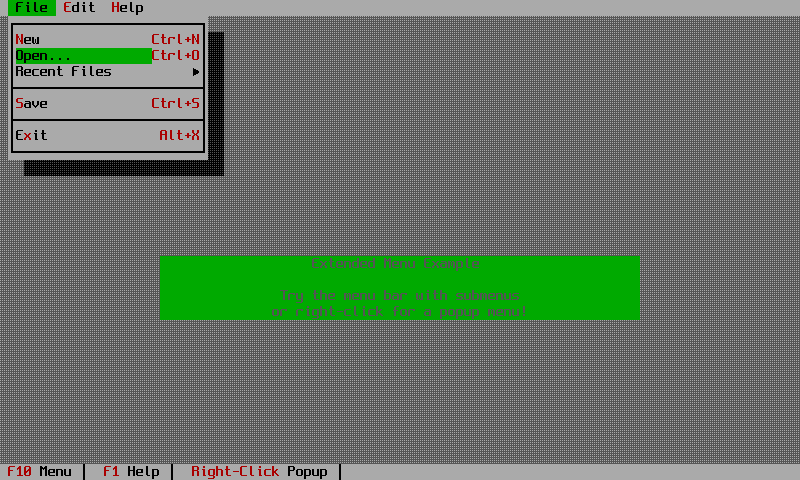
The repository carries 48 examples that double as the downstream API test.
git clone https://github.com/aovestdipaperino/turbo-vision-4-rust
cd turbo-vision-4-rust
cargo run --example showcase      # a broad feature demo
cargo run --example pascal_ide    # the editor, with syntax highlighting
cargo build --examples            # build them all
Leave the application before closing the terminal
Quit with Alt+X. Killing the terminal while an example is running leaves it in raw mode.
Where to go next
Chapter 1 of the user guide builds a complete application from an empty desktop up to a validated data-entry form. The tutorials work through whole projects. If you are arriving from C++, start with the application model comparison.